AI Translation Notice
This document is automatically translated by AI. If you can read Chinese, we recommend checking the original Chinese documentation for more accurate information.
Stage Exploration
TIP
If Use simple explore is selected, the function to skip grid movement will be used. Please note that this will not collect all rewards, but it can increase the success rate of stage exploration (especially in the early game when your students' levels are low and you can't form a complete team).
Some grid-based stages cannot be cleared in one run to collect all rewards (Mission Obbjectives, Special Gift Boxes(50 Pyroxenes), and challenge achievements). For these stages, repeated battles will be performed to ensure all rewards are collected.
WARNING
All automatic battles will use the game's default AUTO mode. Please ensure your team's levels are sufficient.
What? You can't even clear it manually? Well, the script definitely can't clear it either.
Can automatically complete normal and hard stage explorations. Please ensure your team's levels are sufficient.
Stage Exploration Configuration
Fill in the starting chapter and stage in Explore Normal Quest / Explore Hard Quest, then click the Explore Normal Quest / Explore Hard Quest button on the right to start.
Don't know what chapters and stages are? Click here
Team Configuration
Automatic Team Matching
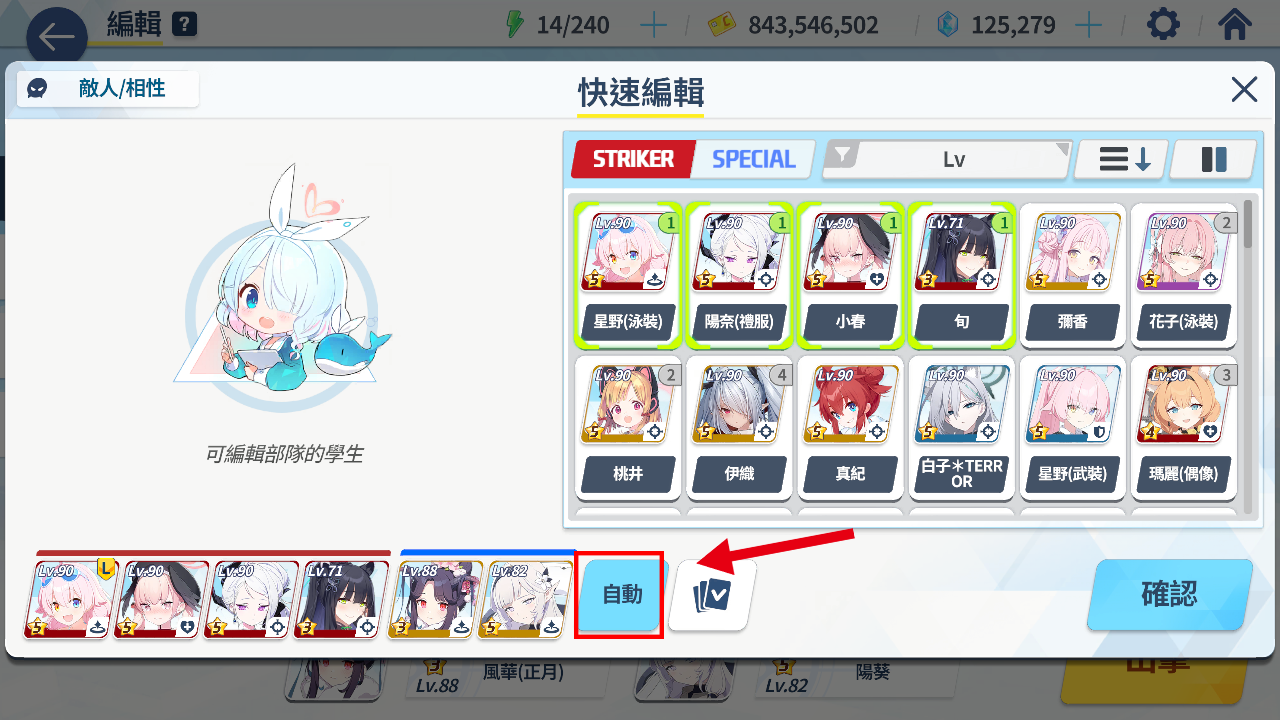
Check Whether to use automatic matching to enable this feature. Before each battle, it will enter the team configuration interface and click the Auto button next to the team to use BA's recommended team composition.
Automatic Team Selection Based on Attributes
TIP
Please check the option Auto select team according to the attribute, if not checked, you need to manually configure the team each time to enable this feature.
This feature does not automatically scan your configured teams to select the best one, but rather selects the most suitable team based on the weights you fill in.
You need to configure your student teams for stage exploration in advance in the team configuration interface, set up different teams, and fill in the attribute weights for each team. Each cell should be filled with values from 0-10, and the script will select the most suitable team based on these weights.
Team correspondence:
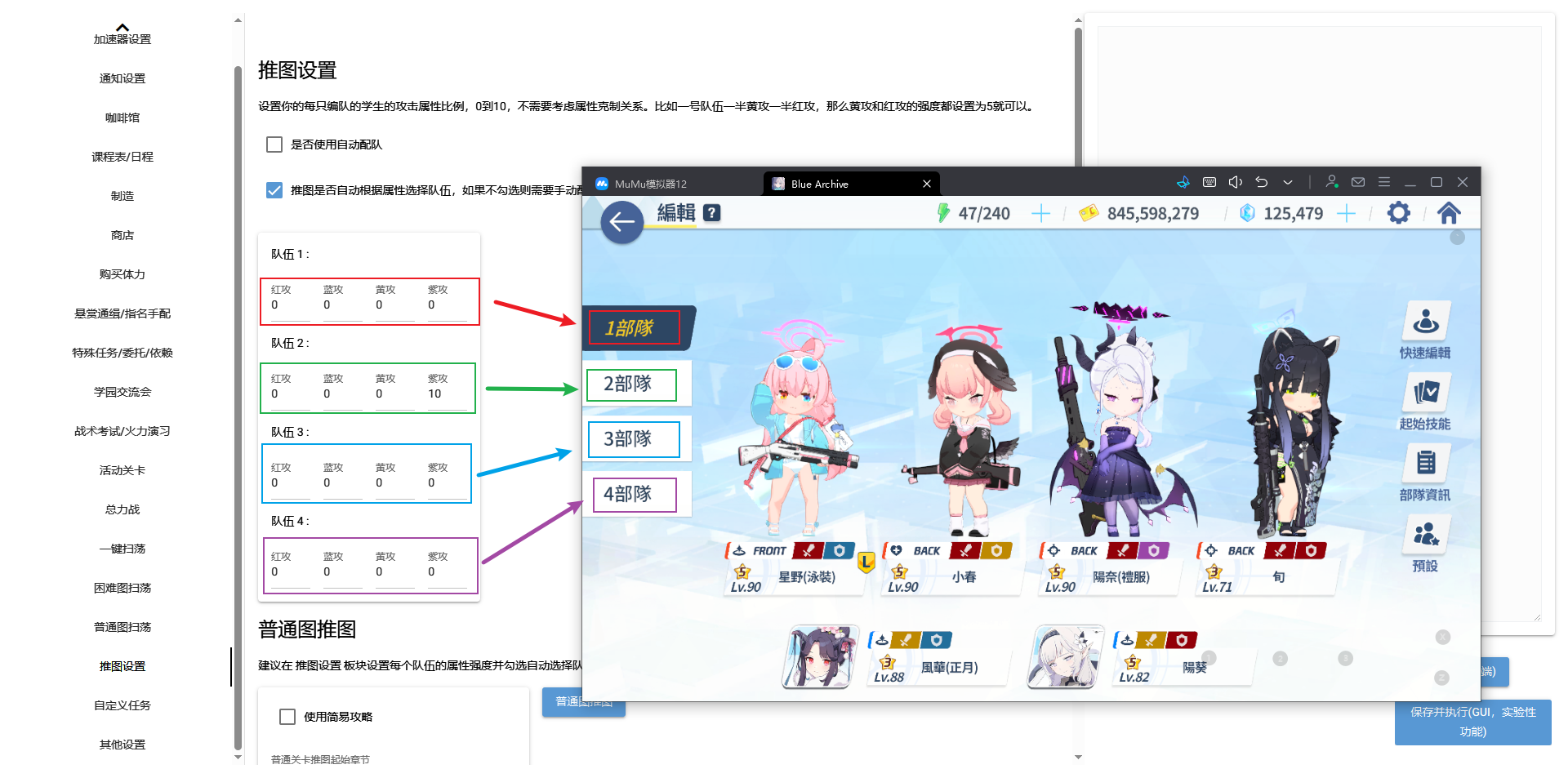
For example, in the game, if your Team 1 is set up to fight both red and yellow armored enemies, you can set both red and yellow attack strengths to 5 in the configuration interface. This way, when encountering red or yellow armored enemies, this team will be selected.
It is not recommended to set a team as a mono-color team, as some stages may have repeated enemy types (for example, two red armored enemies). You can search online for recommended students and team composition guides for stage exploration.
What? You don't have enough students? Use the Use simple explore then. You just won't be able to collect all rewards.
Manual Team Configuration
TIP
Please uncheck the option Auto select team according to the attribute, if not checked, you need to manually configure the team each time to enable this feature.
WARNING
When using this mode, do not execute tasks directly in the GUI. Please fill in Explore Normal Quest / Explore Hard Quest in the Task Execution Order, then execute the task in the terminal.
This is a manual team configuration mode, where the script will automatically handle grid movement and battles, but team configuration needs to be done manually.
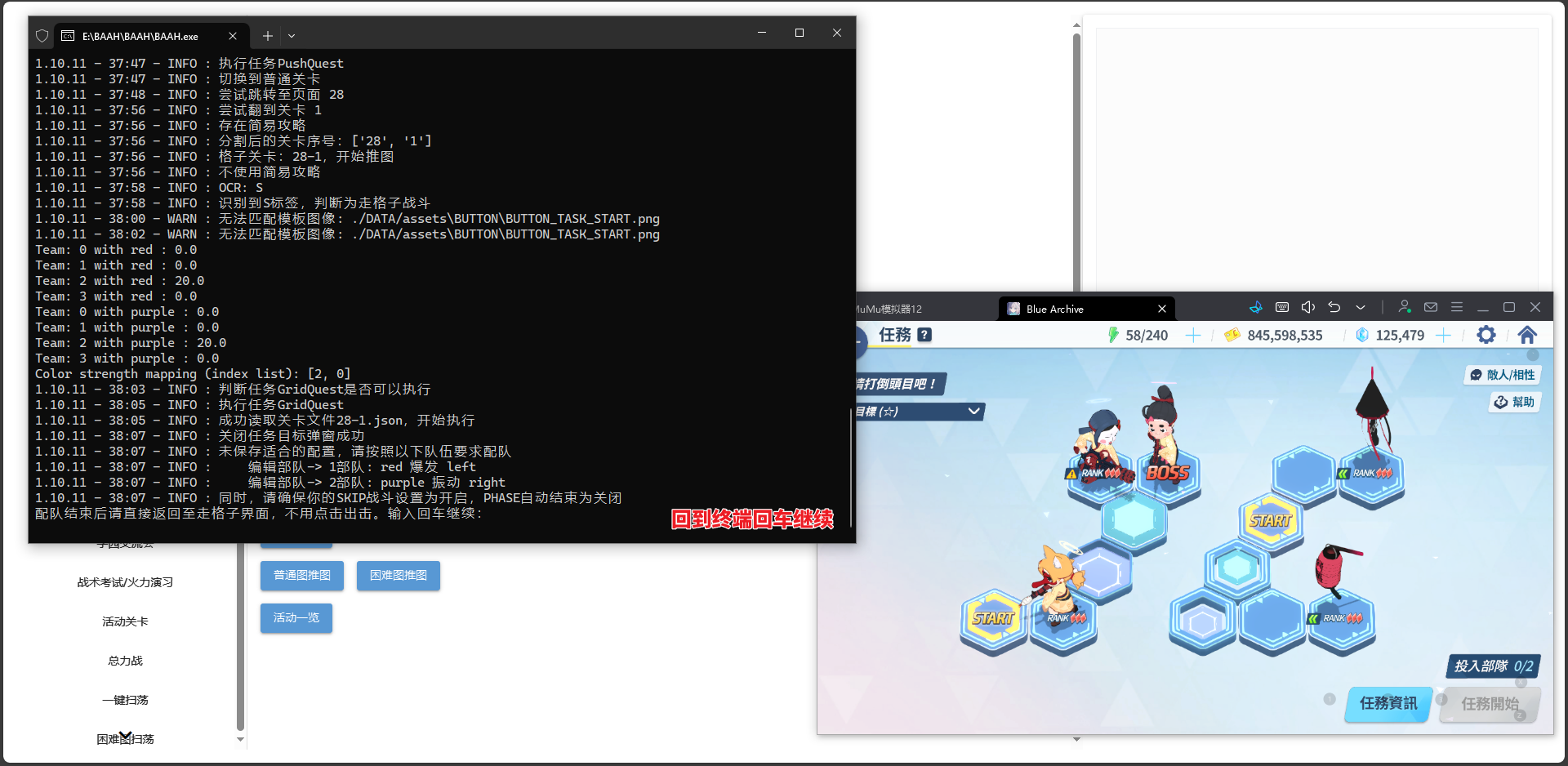
When this feature is enabled, before each battle, it will prompt for the required team attributes in the terminal, and then wait for you to press Enter to continue the task.
Example
- Check the team attributes prompted in the terminal. For example, here it prompts that Team 1 needs red attack and Team 2 needs purple attack.
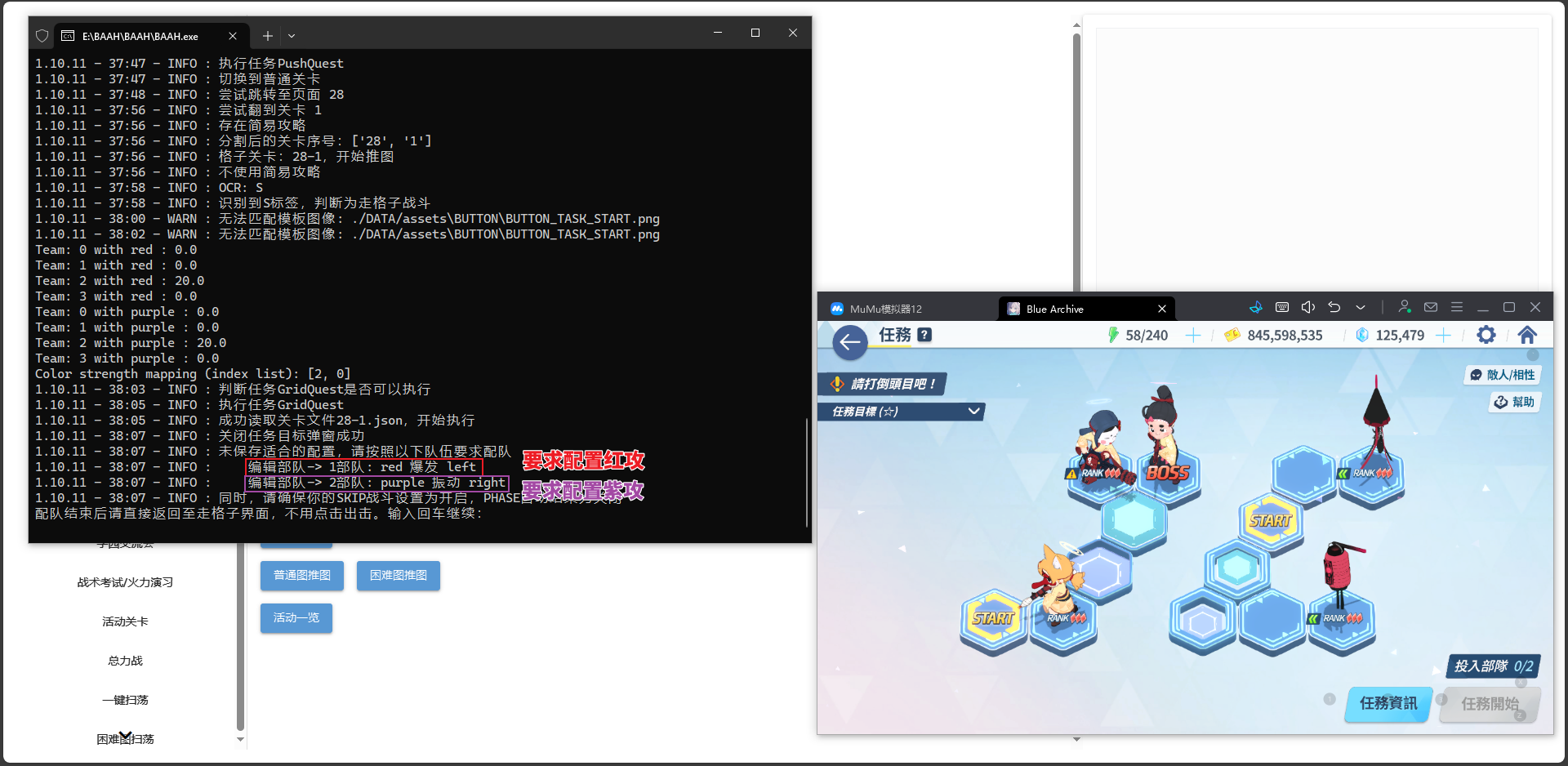
- Click the
Startbutton in the grid movement interface to enter the team configuration interface.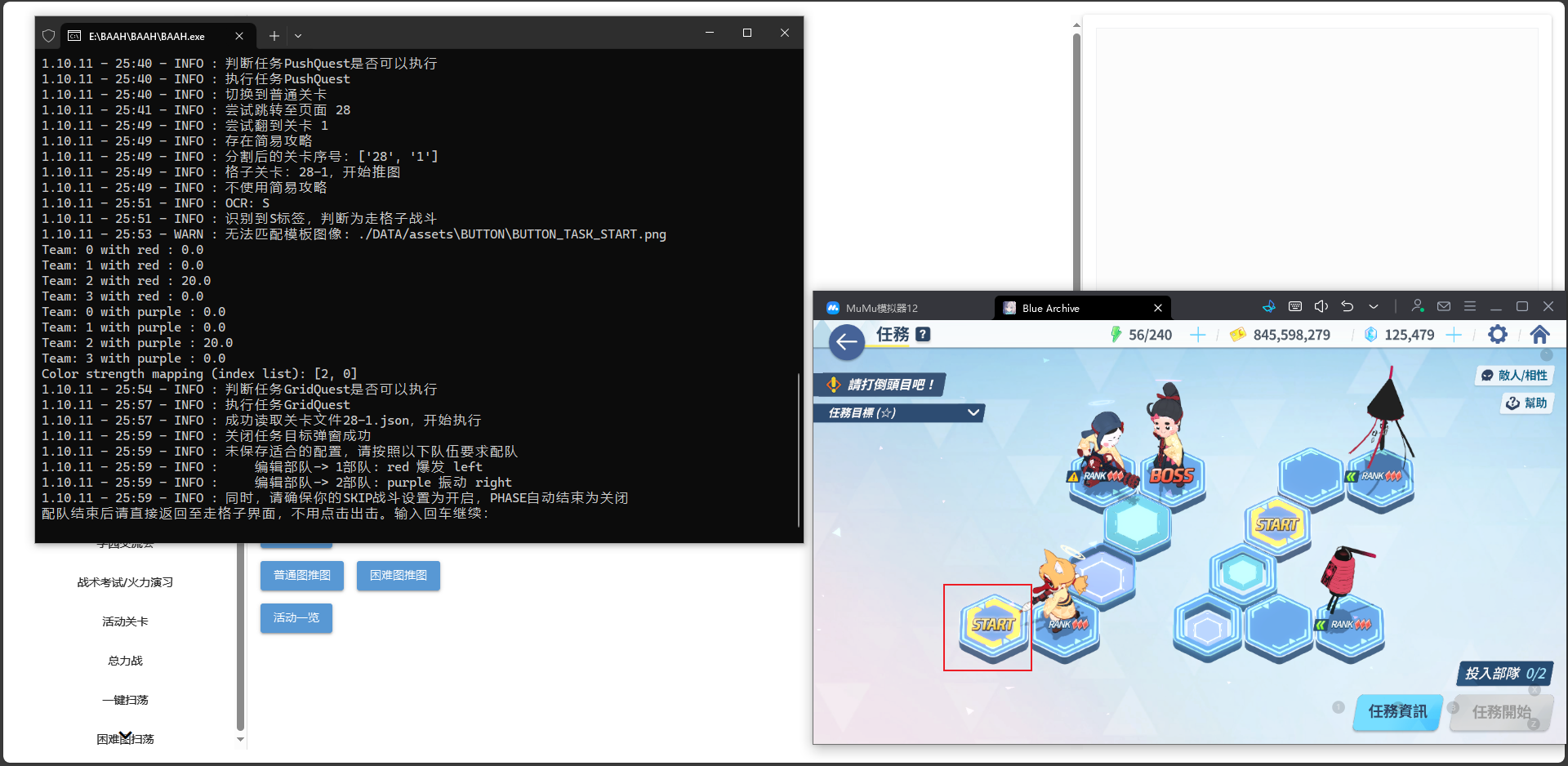
- Configure teams based on the prompt. Here, configure Team 1 with red attack and Team 2 with purple attack according to the prompts.
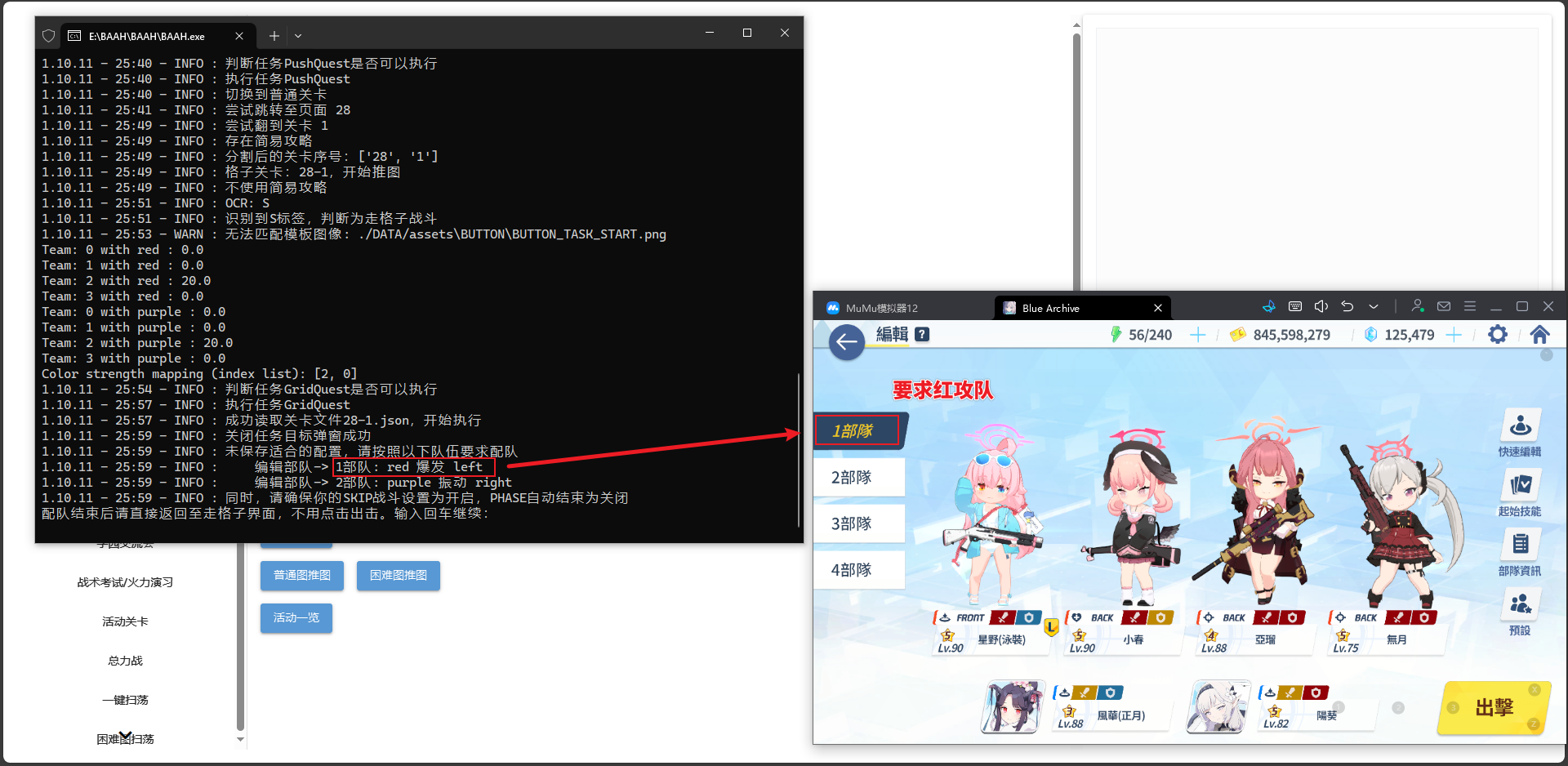
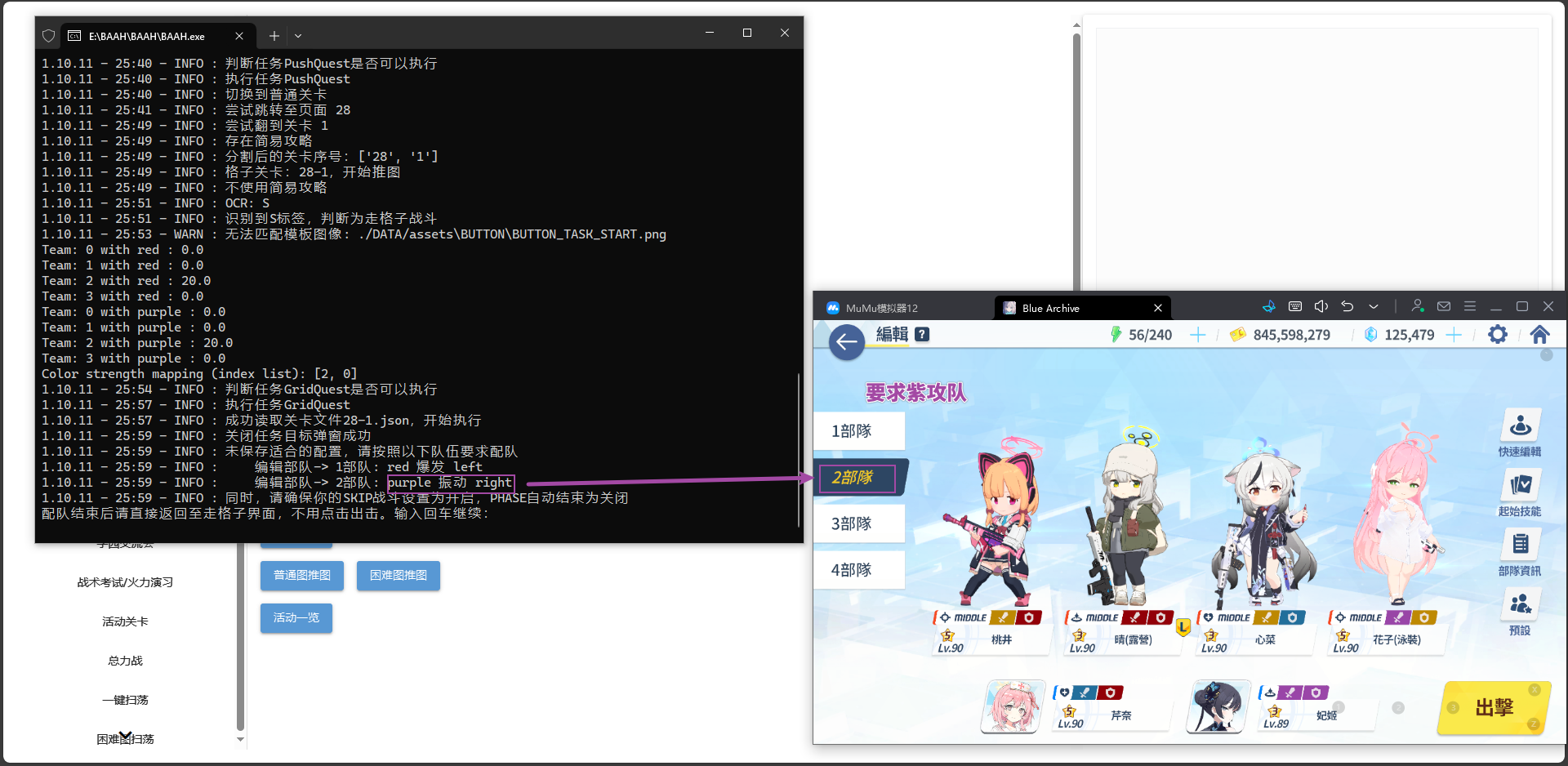
- After configuring the teams, do not click Mobilize. Directly click the return button in the upper left corner to go back to the grid movement interface.
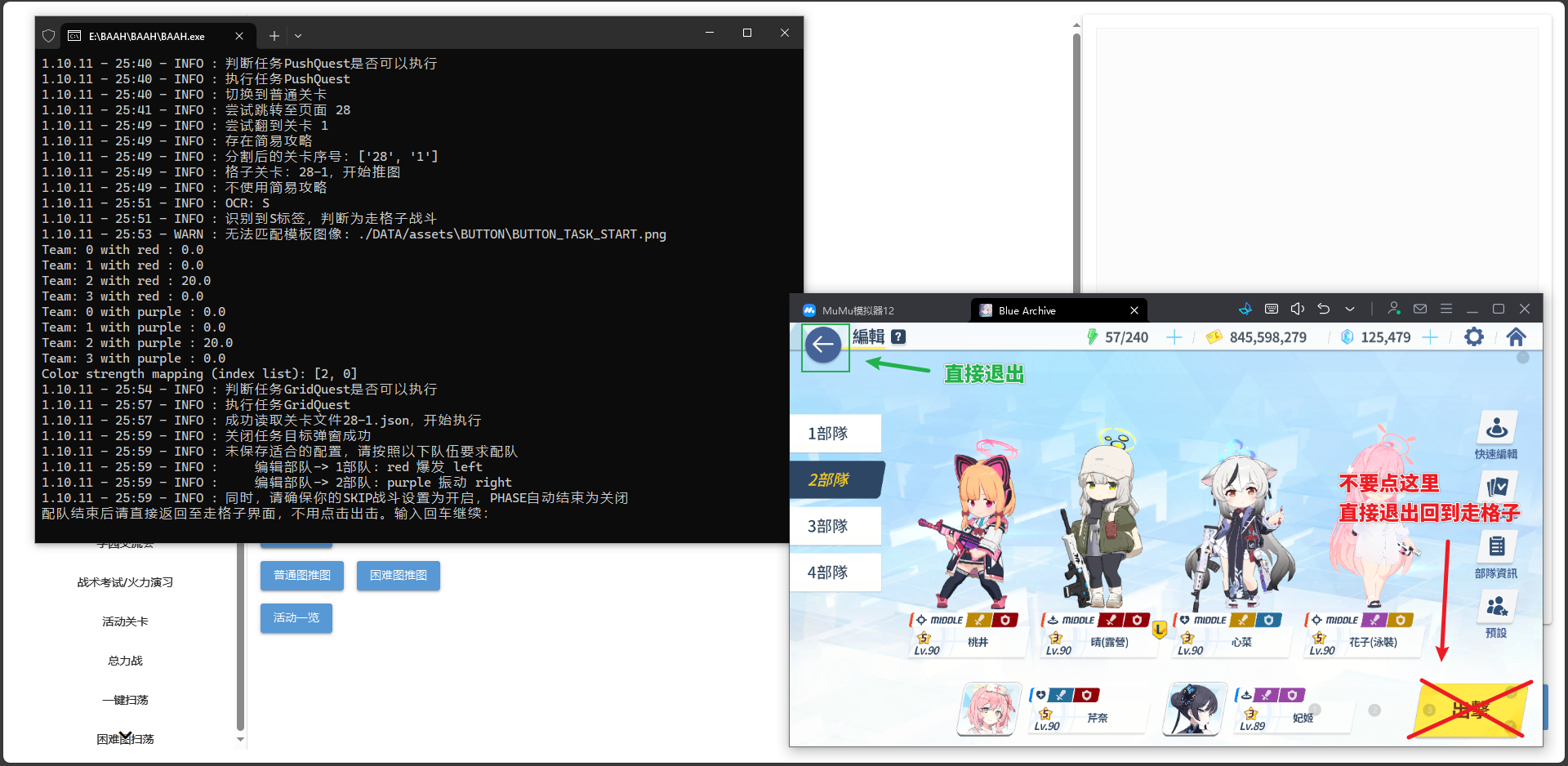
- Return to the terminal and press the
Enterkey on your keyboard to start the task.