AI Translation Notice
This document is automatically translated by AI. If you can read Chinese, we recommend checking the original Chinese documentation for more accurate information.
Automated Operation
Windows
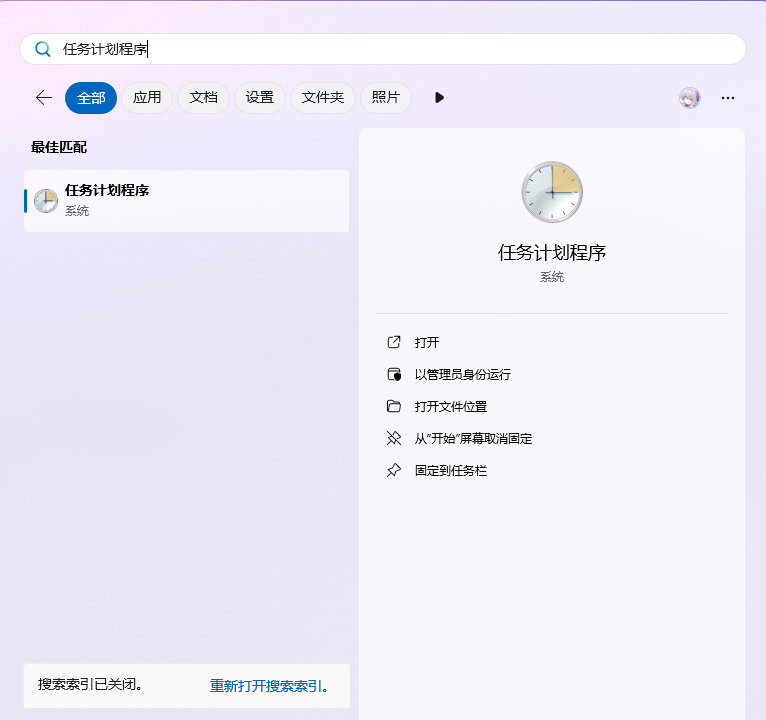
You can use Windows Task Scheduler to automate the operation
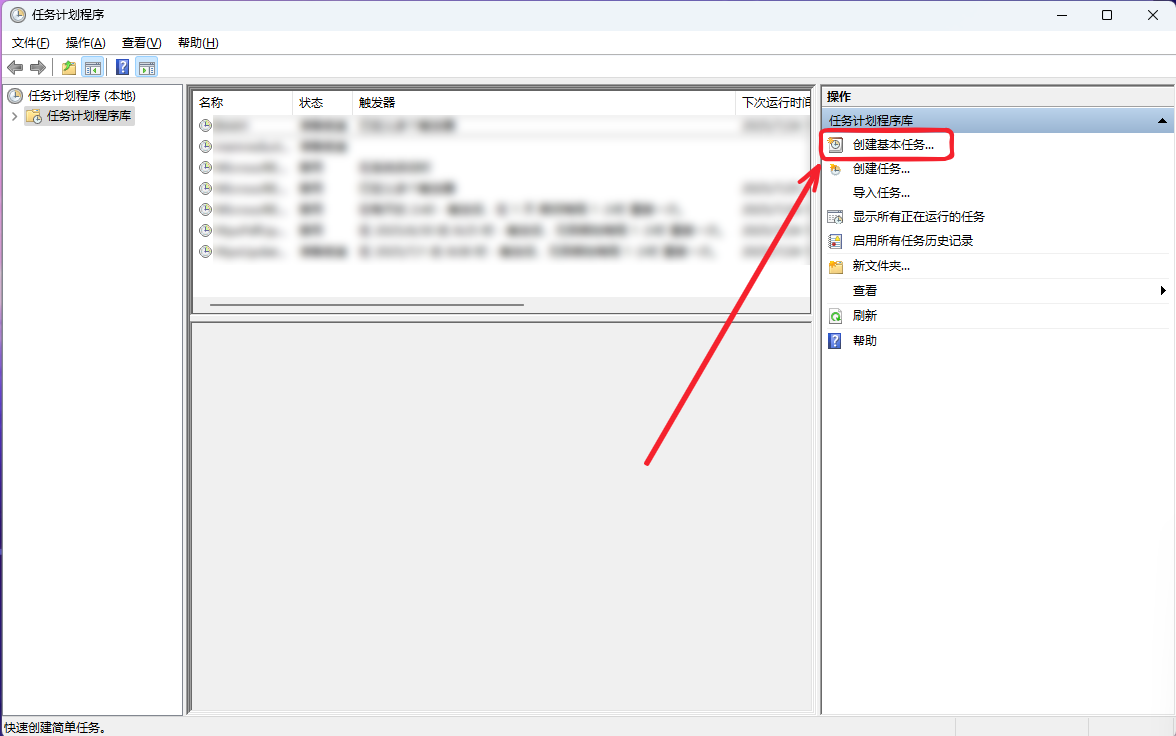
- First, in the Task Scheduler Library, create a folder with any name.
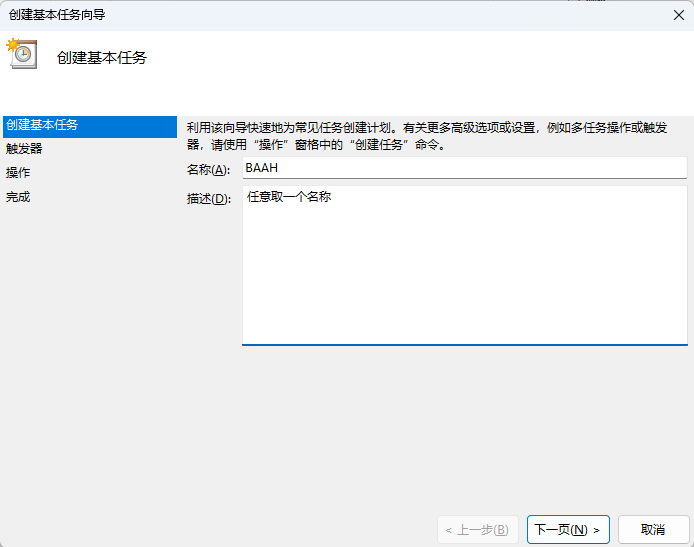
- Then, click to enter the folder and create a basic task with any name. For example:
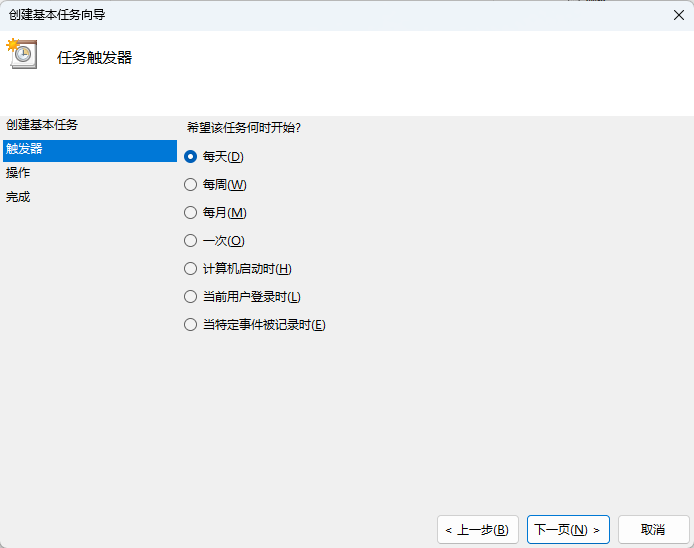
- For the trigger selection, choose according to your needs. For example:
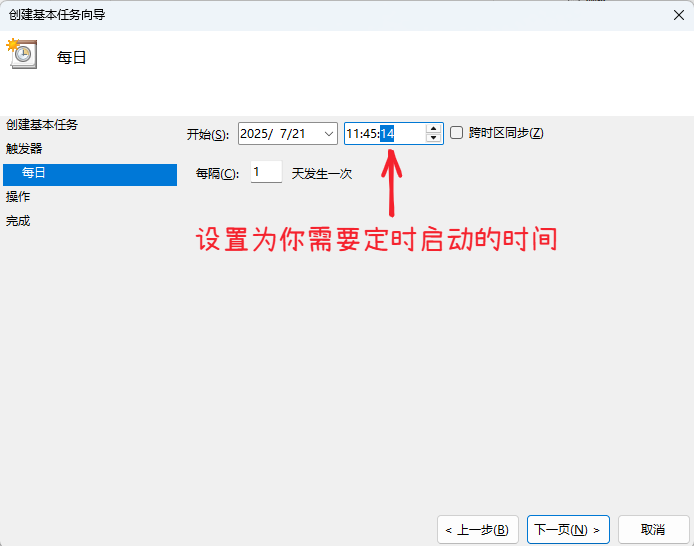
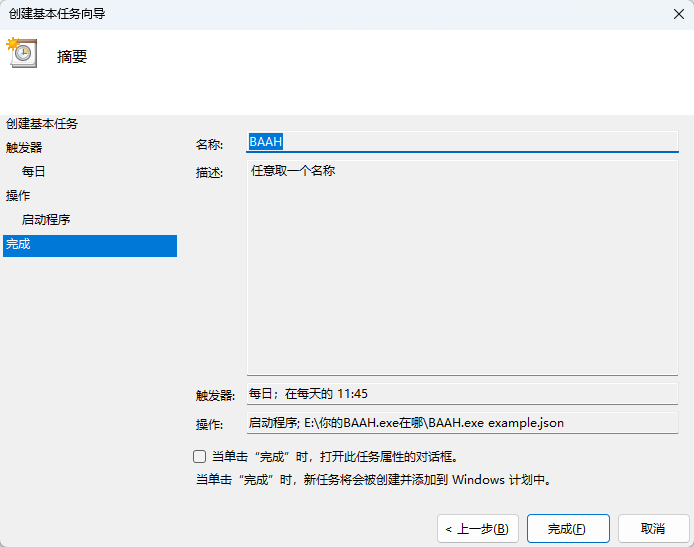
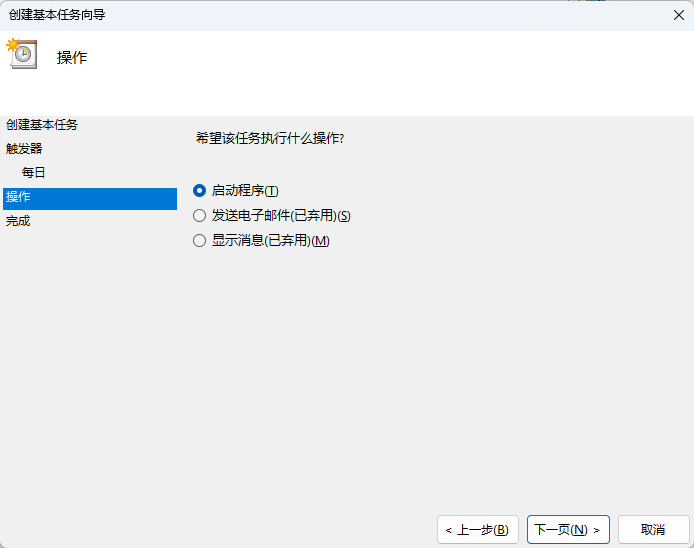
- For the action, select Start a program
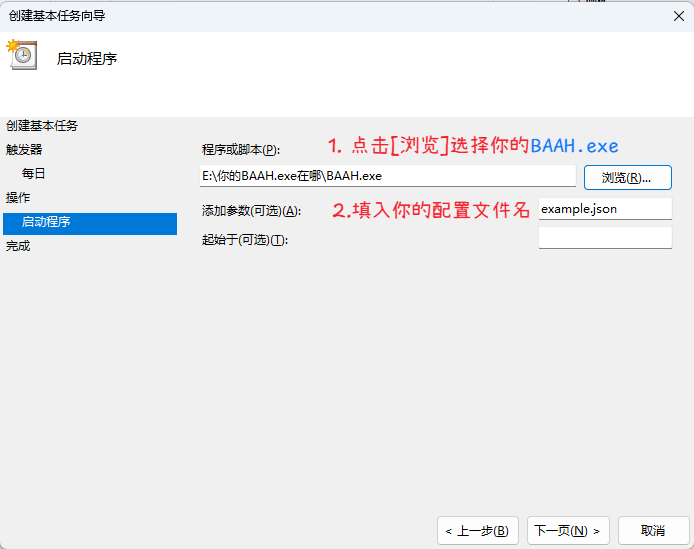
- Click Browse... to select your BAAH program BAAH.exe
Add arguments, fill in the configuration file name with extension, such as example.json
For Start in (optional), fill in everything before BAAH.exe in the input box below Program/script:. For example:
- Then click Next and Finish to complete the task creation.